How to Build a Business Website with Claude or ChatGPT
If you run a small business, you've probably put off the website for a while. Hiring a developer costs real money, and the drag-and-drop builders can eat a whole weekend before anything looks right.
Here's the good news. You can now describe your business to Claude or ChatGPT in plain English and get a clean, working website back in a few minutes. Not a rough sketch. Actual pages with real code behind them.
There's a catch, though, and most guides skip it. The AI gives you a draft. It doesn't buy your domain, host your site, make your contact form send emails, or get you onto Google. So this guide covers the whole trip, from your first prompt to a live site customers can find.
Can Claude or ChatGPT Really Build a Business Website?
Yes. Both are very good at the part most people dread: layout, design, page copy, and the code that holds it together. What they aren't is a full website platform like Squarespace or WordPress. In most cases you'll copy what they build and put it on a host you control.
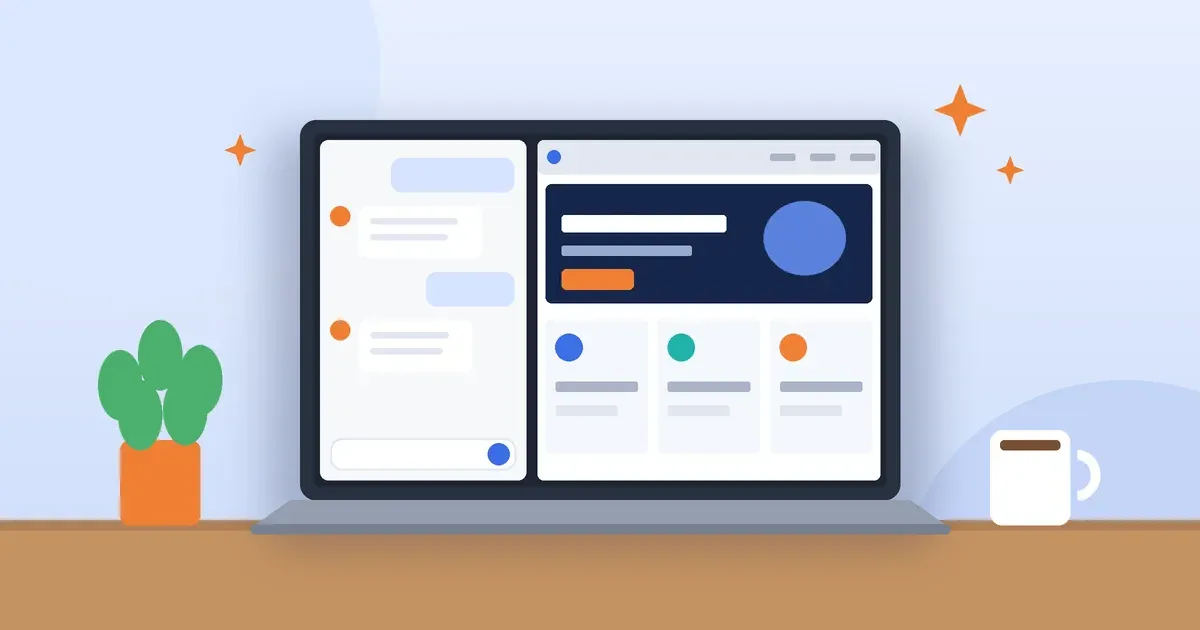
Claude shows your page as a live preview right next to the chat (Anthropic calls these artifacts), so you can click around and ask for changes as you go. You can publish that preview as a link, but the link lives on Claude's site, not on your own domain. If you want a bigger multi-page site, Claude Code can write all the files into a folder on your computer.
ChatGPT writes full HTML, CSS, and JavaScript and can preview HTML right in the chat too. OpenAI also started testing a Sites feature in 2026 that builds and hosts simple websites, but whether you can use it depends on your plan and where you live.
So for most owners, the dependable path looks the same in both tools. Build it in the chat, then host it yourself. That's what we'll walk through.
Claude vs ChatGPT: Which One Should You Use?
Honestly, either one will get you there. The difference is mostly in how it feels to work with them.
FeatureClaudeChatGPTLive preview in the chatYes (artifacts)Yes (HTML code blocks)Free planYesYesMain paid planAbout $20/month (Pro)About $20/month (Plus)Hosting on your own domainNoLimited (Sites beta, some plans)Where it shinesPolished layouts, long consistent copyFast first drafts
Prices and features change a lot, so take a quick look at each pricing page before you pay. And if you already have a subscription to one of them, just use that. Every prompt in this guide works in both.
Step 1: Plan Your Website Before You Prompt
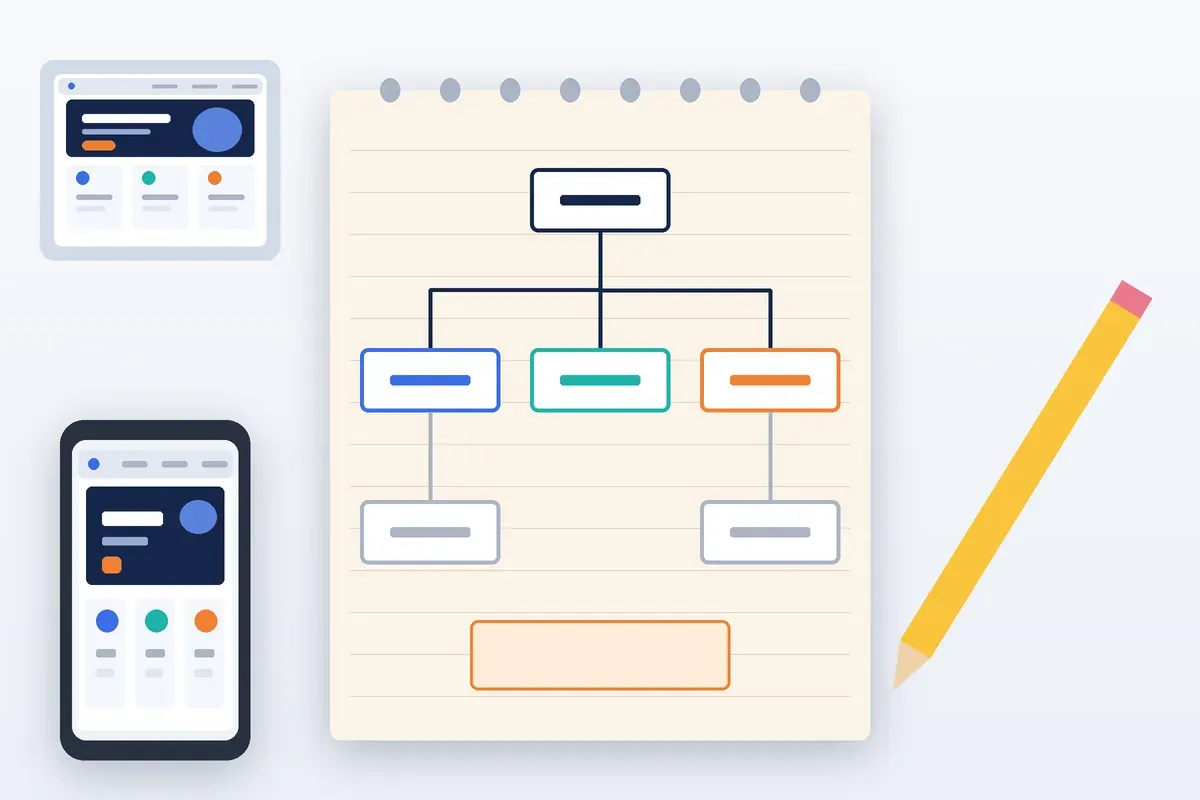
The AI can only work with what you give it. Feed it "make me a plumbing website" and you'll get something that looks like every other plumbing website. So grab a notepad and spend ten minutes on the basics first.
Write down your business name, phone number, address, and hours exactly as they appear on your Google listing. Then decide what you actually want visitors to do. Call you? Book a time? Ask for a quote? Walk in? Pick one main goal, because it shapes the whole page.
Next, think about pages. Most small businesses do fine with five: Home, About, Services, Contact, and a Privacy Policy. Finally, gather the stuff that makes you you: your logo, two or three brand colors, real customer reviews, your service area, and anything that builds trust, like licenses or how long you've been open.
Step 2: Set Up Your Workspace
Use a laptop or desktop for this. You can technically do it on a phone, but copying code and checking previews on a small screen gets old fast.
Start a brand-new chat just for your website and keep the whole project in it. That way the AI remembers your colors, fonts, and details every time you ask for another page.
Step 3: Write a Prompt That Actually Works
This is where most people go wrong. A short, vague prompt gets you a generic site. A detailed one gets you something that feels like your business. Give it your details, your goal, and a few technical rules.
Here's a prompt you can borrow and tweak:
Example prompt: "Build a single-file homepage in HTML and CSS for Riverside Plumbing, a family-owned plumber in Austin, Texas, open since 2011. The main goal is phone calls, so put a click-to-call button for (512) 555-0147 at the top and in the hero section. Include a hero section, three service cards (drain cleaning, water heaters, emergency repairs), a short about section, three customer reviews I will paste below, a service area list, and a footer with address and hours. Use navy and orange as brand colors, a clean sans-serif font, and make it fully mobile responsive. Use semantic HTML, one H1, descriptive alt text on images, and good color contrast for accessibility. No external frameworks."
Paste your real reviews and details right after it. And one firm rule: never let the AI make up reviews, awards, or licenses. Besides misleading customers, fake reviews can land you in trouble with the FTC.
Step 4: Generate and Preview Your Homepage
Hit send and look at what comes back. It won't be perfect, and that's fine. Now you shape it with small, specific requests, like you're giving notes to a designer:
"Make the headline shorter and more direct."
"Move the reviews above the services."
"That orange is too loud. Try a darker burnt orange."
"Check how this looks on a 375-pixel-wide phone screen and fix anything that breaks."
Ask for one or two changes at a time. Stack ten into one message and the AI will often quietly undo something you liked.
Step 5: Build the Rest of Your Pages
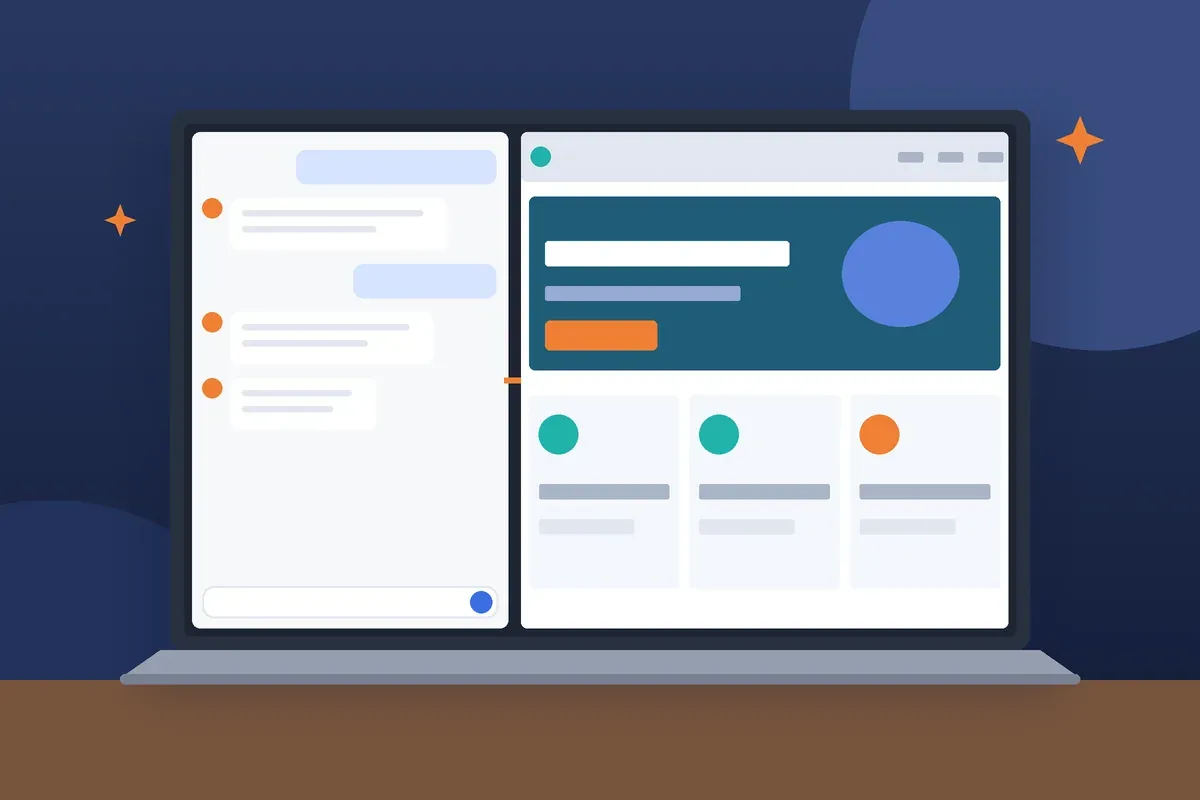
Once the homepage feels right, treat it as your template. Ask for each new page with something like this:
"Using the exact same header, footer, colors, and fonts as the homepage, create the About page. Here's our story: [your details]. Link all pages together in the navigation as index.html, about.html, services.html, and contact.html."
Do the same for Services and Contact. The AI can draft a Privacy Policy too, but treat it as a starting point. If you collect customer data or take payments, or you do business in a state with its own privacy law like California, have someone qualified look it over.
Step 6: Add What a Business Site Really Needs
A nice-looking page isn't the finish line. People have to be able to reach you, and a few details make a big difference.
A contact form that actually sends email
This one trips up a lot of people. A plain HTML form doesn't send anything by itself. Ask the AI to hook it up to a form service like Formspree, or use the form handling built into a host like Netlify. You paste in one link, and messages start landing in your inbox.
Click-to-call and a map
Make your phone number tappable and add a Google Map of your location. Most local customers will find you on their phone, and those two things are what they're looking for.
Accessibility basics
Ask the AI to check your pages for readable color contrast, alt text on every image, keyboard-friendly menus, and labeled form fields. It helps more people use your site, and it lowers your risk under the ADA.
Your own photos
Stock images make every site look the same. Swap them for real photos of your team, your shop, and your work, and save them as WebP so the pages load quickly.
Step 7: Get a Domain and Hosting
This is the step that turns a chat preview into a real website.
First, buy a domain. A .com usually runs about $10 to $20 a year from registrars like Namecheap, Cloudflare, or Porkbun. Then pick a host. For a simple HTML site, Netlify, Cloudflare Pages, and GitHub Pages all have free plans, and regular shared hosting works fine if you'd rather have a control panel.
Save each page as its own .html file in one folder, and name the homepage index.html. Most hosts let you drag the folder (or a ZIP of it) straight into the browser. After that, connect your domain in the host's settings. Most modern hosts switch on HTTPS for free.
Not keen on juggling files and uploads? An AI website builder that handles editing, hosting, and your domain in one place might suit you better. More on that in a minute.
Step 8: Set Up SEO and Launch
Before you share the link anywhere, take care of the basics that help Google and local customers find you.
Give every page its own title tag and meta description. The AI is great at this. Try something like: "Write an SEO title under 60 characters and a meta description under 160 characters for this page, targeting 'plumber in Austin TX'." While you're at it, ask it for LocalBusiness schema markup with your name, address, phone, and hours.
Then claim your Google Business Profile if you haven't already. For a local business, it often brings in more calls than the website does, so link the two. Add a sitemap.xml file and submit your site in Google Search Console so Google finds every page.
Last, test it on your own phone. Tap every button, send yourself a message through the form, and call your number straight from the site. It's a little thing, but it's how you catch the problems customers would otherwise find first.
Mistakes We See All the Time
The biggest one is publishing AI copy without touching it. Read every line out loud. If it sounds like it could be about any business, add what only you know: your neighborhood, your guarantee, how you price jobs, why you started.
Another is using the chat's share link as the website. It's great for showing a draft to your partner, but customers and Google should find you on your own domain.
Watch your contact details too. Your name, address, and phone need to match your Google Business Profile exactly, down to "Suite" versus "Ste." And don't forget the site needs updates. Hours change, prices change, services come and go. Decide now how you'll make edits, whether that means going back to the same chat or using an editor.
When a Website Builder Makes More Sense
The chat-and-upload method is cheap and flexible, but you're the one maintaining it. Every small text change means editing code, or asking the AI again and re-uploading files.
If you'd rather change a phone number or add a blog post without touching any code, an AI website builder with a visual editor and hosting built in is worth a look. With AzurePress, you can create a site with AI, edit it directly, and publish to your own domain from one dashboard. Plenty of owners use Claude or ChatGPT to draft their copy and then build the final site in a tool like this. It's the best of both.
Frequently Asked Questions
Is it free to build a website with Claude or ChatGPT?
You can build a basic site on the free plans of both tools, though usage limits are tighter. You will still pay for a domain, usually around $10 to $20 per year, while simple static hosting can be free.
Do I need to know how to code?
No. You need to copy code, save it as files, and upload those files to a host. The AI writes the code and can walk you through each step if you get stuck.
Which is better for building a website, Claude or ChatGPT?
Both produce solid websites. Claude's live artifact previews make it easy to see and refine designs as you go, while ChatGPT is fast for quick drafts. Use whichever one you already have access to.
Can I use my own domain with a site built by AI?
Yes. Download or copy the HTML files, upload them to a host such as Netlify or Cloudflare Pages, and connect your domain in the host's settings.
Will an AI-built website rank on Google?
It can. Google ranks helpful, original content regardless of how it was made. Add real business details, unique page titles, schema markup, and a Google Business Profile to give your site the best chance.
The Bottom Line
You don't need a developer or a big budget to get a professional website anymore. Plan what you want, give the AI real details, tweak one thing at a time, and then put the finished site on your own domain with the SEO basics in place. Do that, and you'll have a site that doesn't just look good. It'll actually bring in customers.
More from the blog
 Restaurant Website Must-Haves: What Diners Look ForPicture someone deciding where to eat on a Friday night. They have three places in mind, a few minutes to choo... · 7 min read
 Website Ideas for Plumbers, Electricians and HVAC ContractorsA contractor’s website has one job, which is to get the phone ringing. Here are 14 practical website ideas for... · 7 min read
 AI Website Design Prompts: 25 to Build Your Business SiteBuilding a business website with AI works best when you know what to ask. These 25 copy-and-paste prompts take... · 8 min read